Documentation and Help
Using the tRNAdb Web Interface
Search Form Fields
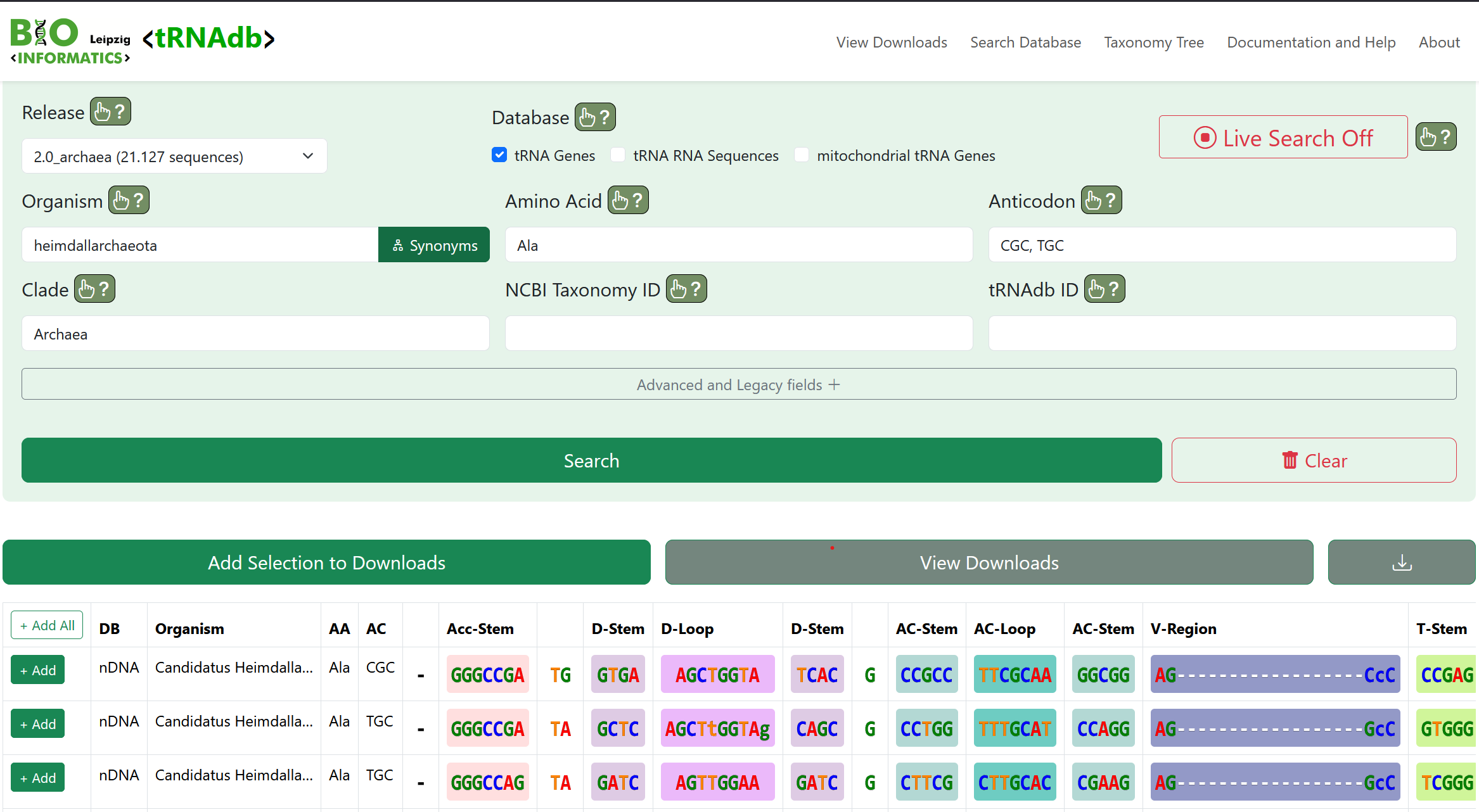
The tRNAdb search form provides an easy-to-use interface to query our database for tRNA sequences you are interested in. Every search form field you fill is used for filtering the tRNAs present in our database and only tRNAs fitting every input you made will be displayed. The search form can be fully cleared by pressing the red Clear button at the bottom of the search form or by pressing "Enter" on your keyboard while a field is selected. You can also activate Live Search by toggling the button in the top right of the search mask, this will continuously perform a search as the input of the search form changes.
Once a search was performed (by clicking the search button, or pressing enter while a text field is selected), a list of matching results is displayed in a table below the search form. Note that the table is horizontally scrollable and displays columns for database origin (mitochondrial, genomic, ...), organism/species name, amino acid, anticodon and the correponding tRNA sequence separated by structural regions.
The results table is sortable by every field displayed by either clicking on the column header (multiple clicks toggle ascending, descending, and no sorting for this column). The results can be sorted by multiple columns by clicking the respective column headers. Order matters - hence first sorting by AA (amino acid) and then by anticodon leads to entries being sorted by amino acid first, and then by their anticodon. All column (or an individual column) sorting can be cleared by right clicking on a column header and clicking "Clear All Sorting" ("Clear Sorting") in the popup menu that appears. This popup menu can also be used to apply a desired ascending/descending sorting for an individual column.
Below, you find an overview of the usage of the fields the search mask provides:
| Search Form Field | Explaination | Usage Example |
|---|---|---|
| Release | Filter tRNAs by release. All current releases are listed in a dropdown menu. If you want to query every version, just leave the field unchanged, or "All Releases" | |
| Database | Filter tRNAs by "origin", hence genomic tRNAs, tRNA RNA sequences, or mitochondrial tRNAs. Multiple sources can be selected. If no checkbox is selected, the search defaults to every data source. | |
| Organism | Filter tRNAs by species they belong to. When the button on the right of the "Organism" input displays "Synonyms", synonym search is toggled on and species common synonyms like "Human", "Mouse", etc. are matched. If the button displays "No Synonyms", only the scientific species names as annotated by NCBI Taxonomy are matched. Note that searching tRNAdb is significantly faster when "No Synonyms" is toggled. Results can be filtered by multiple species names/synonyms by providing a comma-separated list of species names. When only a single species name is provided, partial matches are returned. | "canis lupus familiaris, mus musculus musculus" filters for tRNAs from humans and mice. "canis" filters for all species with 'canis' occuring at some position in their name. |
| Amino Acid | Filter tRNAs by amino acids they transport. Amino acids need to be supplied as the canonical three-letter codes, the available three-letter codes can be seen in the autocomplete list when the field is selected. Results can be filtered by multiple amino acids by supplying a comma-separated list. | "Ala, Phe, Leu" filters for tRNAs transporting Alanine, Phenylalanine, and Leucine. |
| Anticodon | Filter tRNAs by their anticodon. Anticodons can be specified using "A,T,C,G". When only one or two nucleotides are provided, tRNAs with anticodonds beginning with the one or two supplied nucleotides are returned. To filter for multiple anticodons, a comma-separated list can be provided. In this case, only exact matching are returned. | "AC" to filter for tRNAs with anti codons beginning with "AC". "AGC, TGC" to filter for tRNAs with either AGC or TGC/UGC anticodon. |
| Clade | Filter tRNAs by the taxonomic group the species they originate from belong to (according to NCBI Taxonomy). Only exact matches are returned and the search interface provides auto completion for all clades with tRNAs present in the database by clicking the "Clade" field. See the taxonomy browser of the database for a searchable overview of taxonomic groups and species present in the database. | "Viruses" to filter for tRNAs from viral genomes, "Hominidae" for tRNAs from genomes of the great ape family. |
| NCBI Taxonomy ID | Filter tRNAs by the NCBI Taxonomy ID of the species they belong to. To filter for multiple NCBI Taxonomy IDs, provied a comma-separated list of IDs. | "63221, 9606" to filter for tRNAs from Homo Sapiens Neanderthalensis and Homo Sapiens. |
| tRNAdb ID | Filter for tRNAs by their tRNAdb ID. The tRNAdb ID can be found on the results page of individual tRNAs, or exported with the download manager. | "mtdbD00000529, tdbD00000529" to filter for tRNAs with the two matching tRNAdb IDs. |
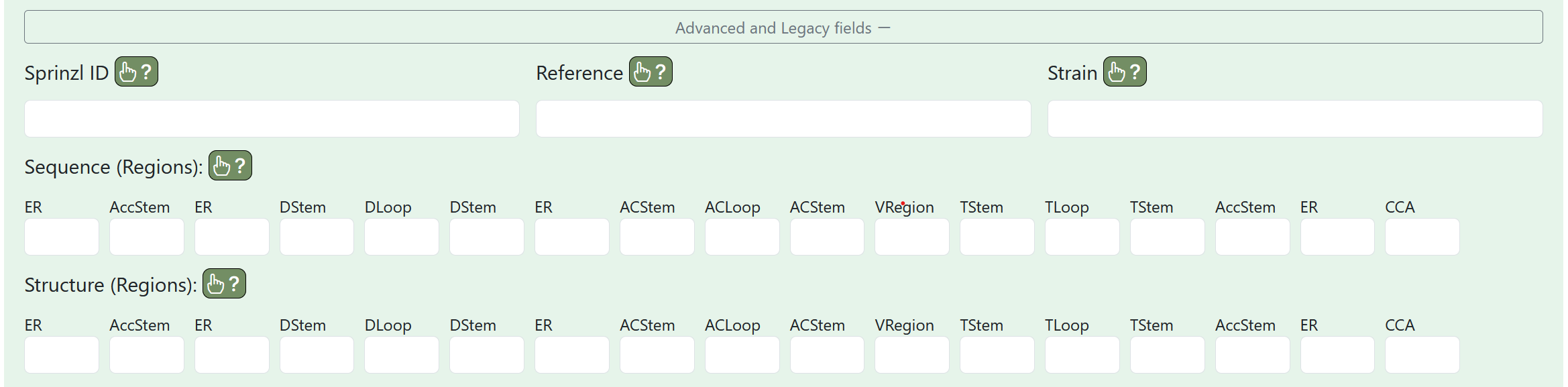
We additionally provide some advanced/legacy fields:
| Search Form Field | Explaination | Usage Example |
|---|---|---|
| Sprinzl ID | Filter tRNAs by their Sprinzl ID. This field is for legacy tRNA sequences that have been integrated from "Compilation of tRNA sequences and sequences of tRNA genes" by Mathias Sprinzl et al. with the original tRNAdb 2009. A comma separated list of multiple Sprinzl IDs can be supplied | "DI3880, DI3780" |
| Reference | Filter tRNAs by their Reference which can be either a publication (exclusively for legacy tRNA sequences), or accessions of NCBI and BV-BRC (archaea) assembly and sequence accessions. A comma separated list of multiple references can be entered. Note that the filtering always allows partial matches when only one reference (no comma) is supplied and only exact matches are returned when multiple references are entered. | "NW_008751656.1, NC_026908.1" |
| Strain | Filter tRNAs by the strain of a species. This field is for legacy tRNA sequences of tRNAdb 2009; all releases since then rely on NCBI taxonomy IDs for strain identification. | "UAB CTIP" |
Export Workflow and Collections
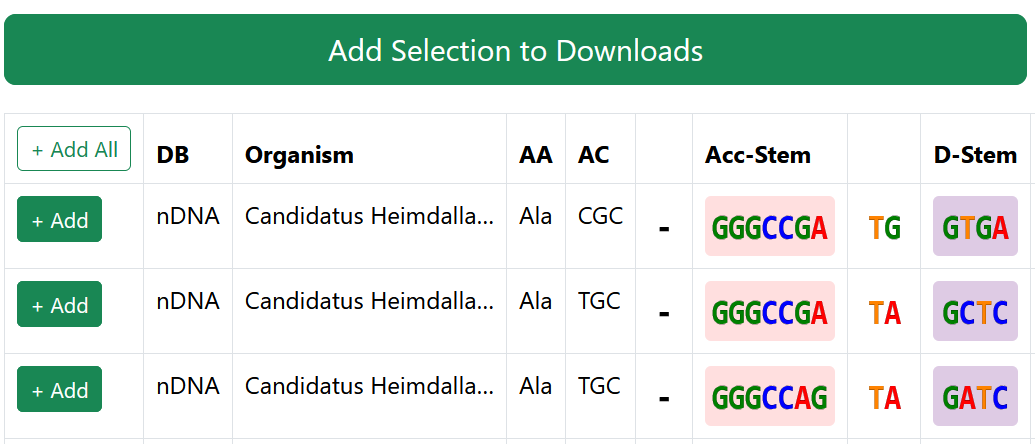
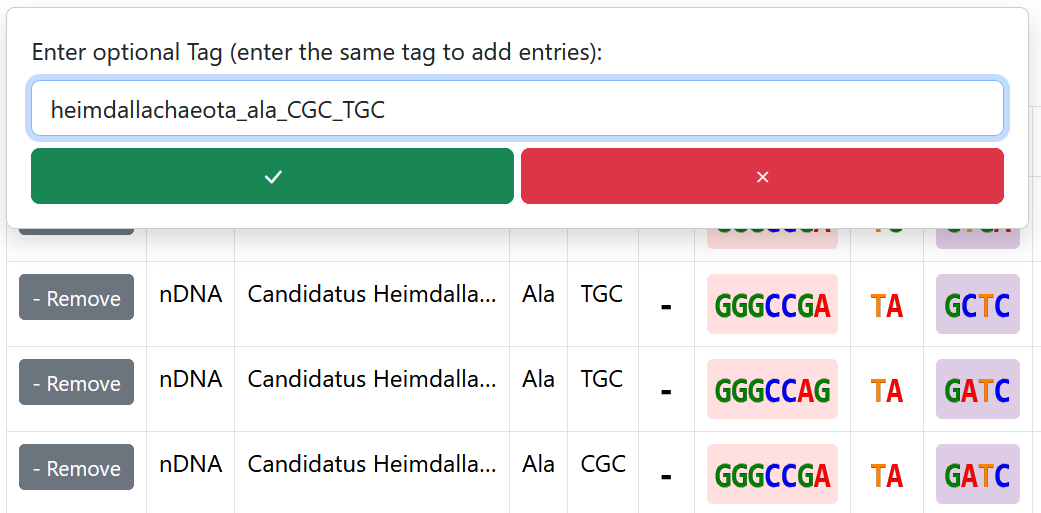
The general workflow of exporting sequences from tRNAdb is to first save selected sequences to a temporary selection, then commit the temporary selection into a persistent collection which survives reloading/closing of browser tabs, and finally export a persistent collection to a file that is downloaded to your device.
After a search was performed, entries from the results table can be added to the temporary selection. This can be done for individual entries by clicking the "+ Add" button at the left of an entry row, or all tRNAs matching the current search query can be added by clicking the "+ Add All" button at the top left of the results table (see "Add Entries to Selection" image above). Adding large sets of entries to this temporary selection can take a few seconds.
All entries currently in a temporary selection can be committed to a persistent "Collection" by pressing the "Add Selection to Downloads" button. You are prompted with a small text field to name your collection, and the temporary selection is committed upon pressing the checkmark button in this window (See "Create Collection" image above). If you want to add more entries to an existing collection, the same collection name can be entered and the new sequences will be appended. Note that duplicate entries are automatically detected and not added twice. Note that your temporary selection persists across searches, i.e., you can add all entries returned from one search query to the temporary selection, then do the same for another query, and when you finally press "Add Selection to Downloads", both sets are added into the new selection. Note that the temporary selection does not survive a browser reload or changed browser tabs.
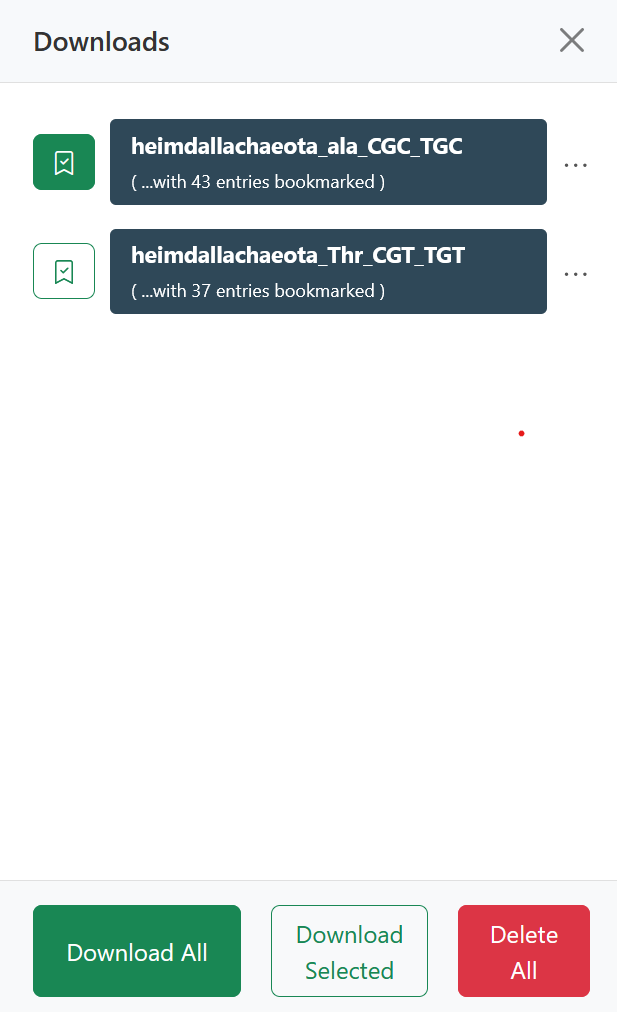
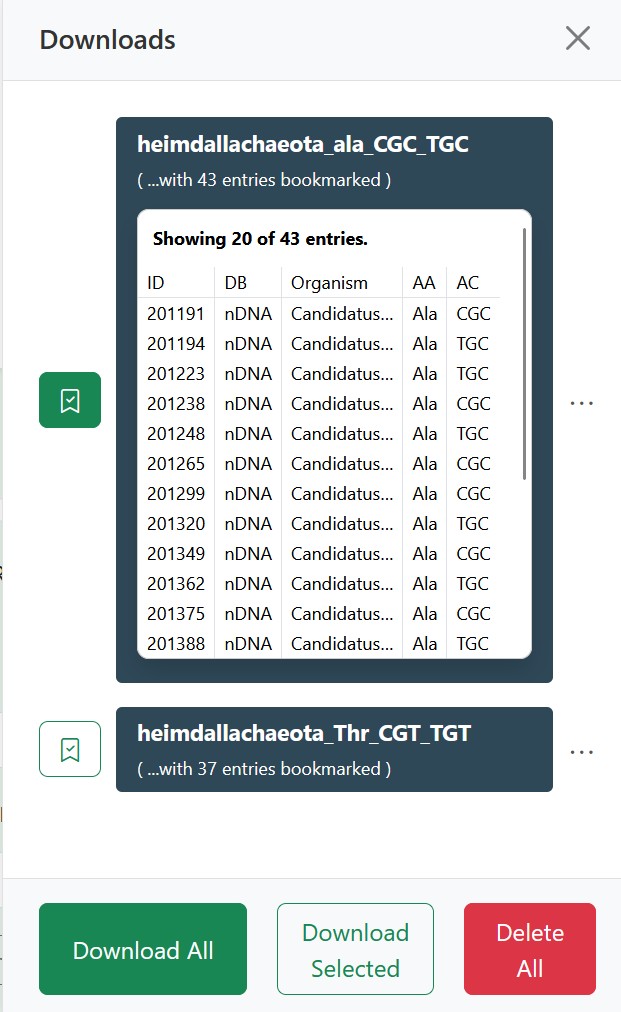
Persistent collections can be viewed (and downloaded) in the download manager which can be opened by pressing the gray "View Downloads" button below the search form, or the "View Download" menu button at top of every subpage of tRNAdb. In the download manager, you see all of your current collections (see "Download Manager" image above) and the tRNAs in the corresponding collection can be previewed by clicking on the collection card (see "Preview Individual Selection" image above).
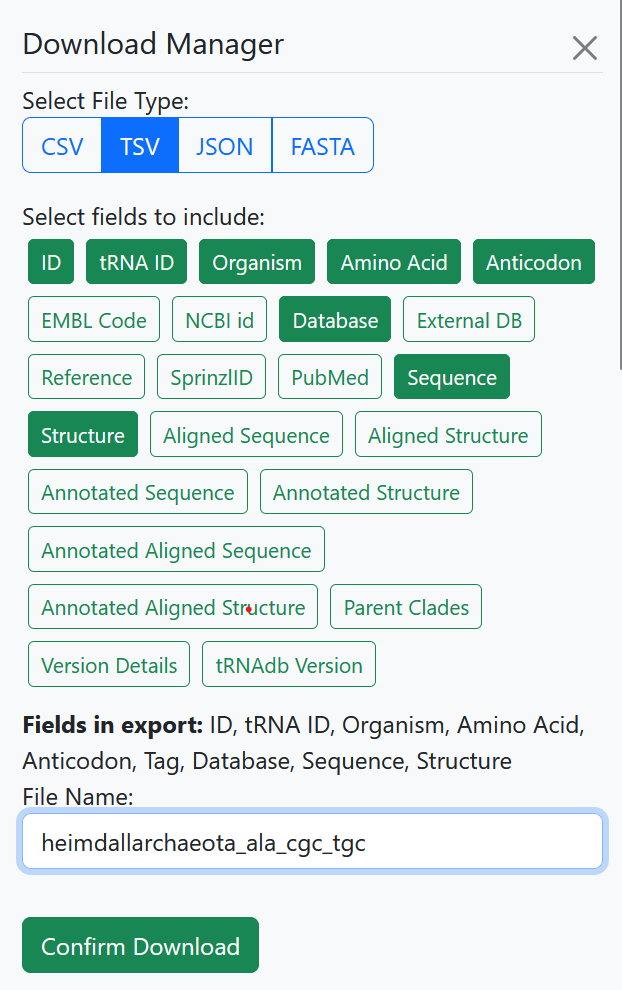
You an export individual collections by selecting the bookmark button on the right of the collection in the download manager and pressing "Download Selected" at the bottom of the download manager. If you want to export all of your current collections, this can be done by pressing the "Download All" button (see "Download Manager" image above). Once you pressed either of the download buttons, a menu that lets you configure your desired filetype, and desired export field opens. You can select either csv, tsv, json, or fasta export. For csv, tsv, json, you can toggle each field button to include/exclude fields you want in your exported file. For fasta, you can pick an individual sequence field, or multiple sequence fields to export as a multiline fasta. Additionally, you can add or remove attributes in the ">"-identifier line in the fasta by toggling the buttons at the bottom of the configuration screen. A preview of the fasta identifier is also provided at the bottom.
Once you are satisfied with your export configuration, you can start an export job by pressing "Confirm Download". A notification with a progress bar on the left of your screen will track the progress of your export and, once completed, your browser will download the export file. See below for a brief explaination of the export job progress cycle.
Export Job Progress
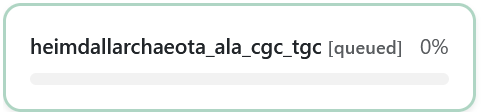
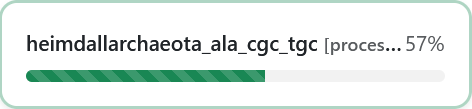
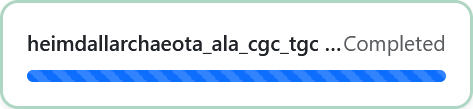
Since export of large sets of tRNA sequences from tRNAdb takes some time and computing resources, we provide a simple overview of the progress of your export jobs on the left side of your browser window. An export job moves from "queued" (see "Export Job Queued" image above) to "processing" (see "Export Job Processing" image above) to "completed" (see "Export Job Completed" image above). The "queued" status means that your export job has been accepted and is waiting in a queue for processing. Depending on the current workload of our servers, this can take some time. The "processing" status means that the export job is actively worked on by our server - database rows are retrieved and processed into your desired format. The "completed" status means that the export job has finished and the exported file is currently being sent to your browser; a download should start shortly.
Note that, depending on your browser settings, export jobs are persisted across browser tab reloads, browser tabs closed, and new tabs opened.